Published
Fae joins Gremlin, Cat and Unicorn in Avatar Studio. Start with a lavender character, a short bob, tall pointed ears, glowing eyes and cyan joints, then make the look your own.
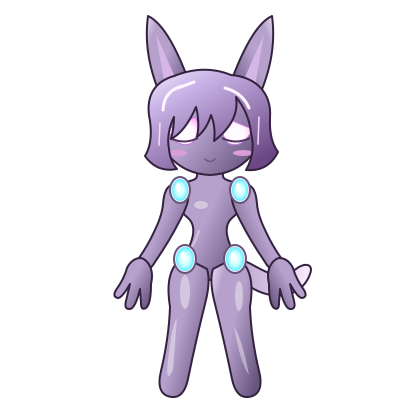
Find Fae in the existing editor
Open Avatar Studio, choose More, then Characters and Fae. Use the same category selections and preview as the other characters. Male, Female and Natural remain your choice.
Build a look one piece at a time
Try a hairstyle and color first, then choose eyes, mouth, ears and earrings. Tails, tops, bottoms, sleeves, shoes, gloves, wings and head ornaments are separate options. Optional markings, finishes and effects add another layer.
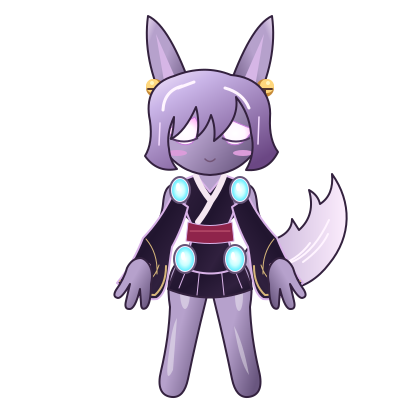
Moon, Galaxy, Sakura, Shadow and Kitsune collections offer starting combinations. Their pieces remain editable individually. Check the item’s Basic, Purchased or tier label: previewing an item does not unlock it.
Keep the Studio view you like
The normal Studio view includes its glass circle, background and controls. Inspect offers a plain light, dark or neutral backdrop for checking colors and outlines. Choose Studio to return to the regular view. Full body, Face and Feet help you examine a detail without changing your saved proportions.
Save, experiment and return
Save a favorite in My outfits before trying another direction. Fae retains its own appearance when you switch characters. Reset Fae restores its default appearance while keeping your selected presentation; Undo reset brings back the previous Fae appearance. Existing saved looks and item ownership remain separate from this reset.
What the concept art means
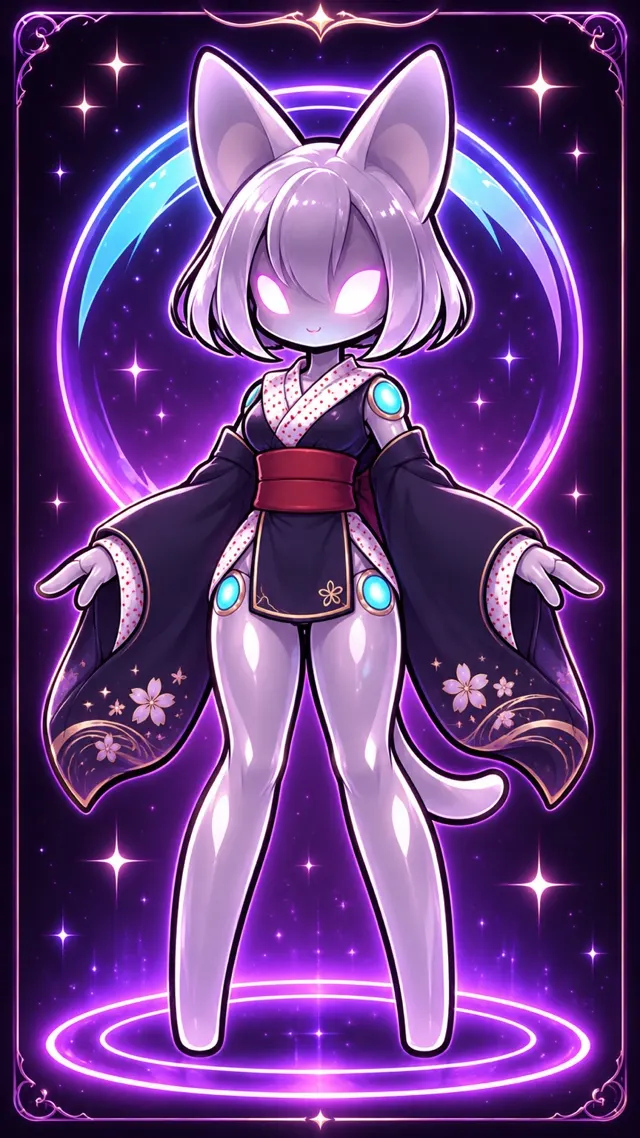
The illustrated references establish a mood, palette and silhouette. The playable character uses simpler, replaceable parts so it can blink, move and combine selections. Look at the current character renders above for an example of the editor artwork.
Next: bring your character into Avatar Glass, or explore the art behind the quartet.