Updated · By Grim & Goldie Studios
Avatar Glass keeps your character and Familiar nearby while you explore the site. Open it from the floating avatar button, expand it when you want to edit, and use the panel icons to move between its four areas.
New: Bubble Pop, discovery XP and avatar help
Hold the color circle on Home to start Bubble Pop. Aim and match groups of the same color; Back ends the game. The board now uses more of the Glass preview.
First-use buttons and new manually applied avatar options can earn small discovery XP rewards, with a separate 30-XP daily cap. Blue glowing orbs travel to the level button, or to the website’s floating avatar icon when Glass is closed. Drop and collection sounds respect mute. Random dice rolls do not earn manual-customization rewards.
Hold ordinary buttons for three seconds to see avatar-led help. The glow and sparkles build as you hold. Special hold actions keep their behavior and provide separate information help. With no explicit pet selected, night uses Crow and day uses Dove; Auto — Crow/Dove restores that behavior.
New to customization? Read the 2D avatar editor introduction and manual customization guide. For everyday uses, see avatars, tasks and daily routines.
Four panels, different jobs
| Panel | Use it for |
|---|---|
| Heart · Home | Your avatar, Familiar, quick interactions and everyday widgets. |
| Hanger · Studio | Character selection, appearance previews and editing. |
| House · Room | Room decoration, lighting, objects and play. |
| Vehicle · Garage | Vehicle selection, customization and travel effects. |
You can switch panels while a vehicle is moving; you do not have to park just to navigate. Expand Glass before using the full editor. The move and resize handles help place the widget where it is comfortable on your screen.
Bring Fae into Glass
Choose Fae alongside the existing characters, then build a look with separate hair, face, tail, clothing and accessory choices. Basic, Purchased and tier indicators still tell you which items are available to your account. Save when you finish an edit.
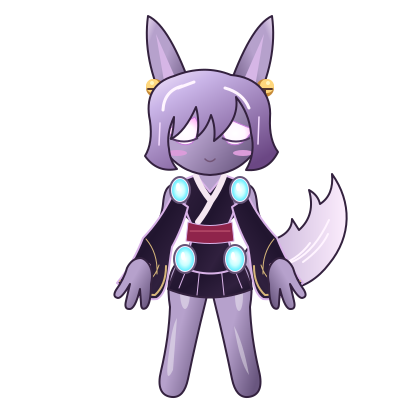
For the full selection path and examples, read Meet Fae. The standard Studio view keeps the glass circle and controls; Inspect is an optional plain preview in the editor.
Try expressive camera filters
Open the camera using the eye button and allow camera access if you want to use the camera features. The eye is black when off and green when active. Choose a compatible avatar filter, face the camera and try a blink or wink. Supported expressions include separate left and right eye closure, squinting, mouth movement, a tongue gesture and a kiss effect.
Tracking depends on the selected filter, lighting, face visibility and device. Try one expression at a time. Return to Normal or close the camera when you are finished; a temporary expression is not a new saved outfit.
Make space for everyday play
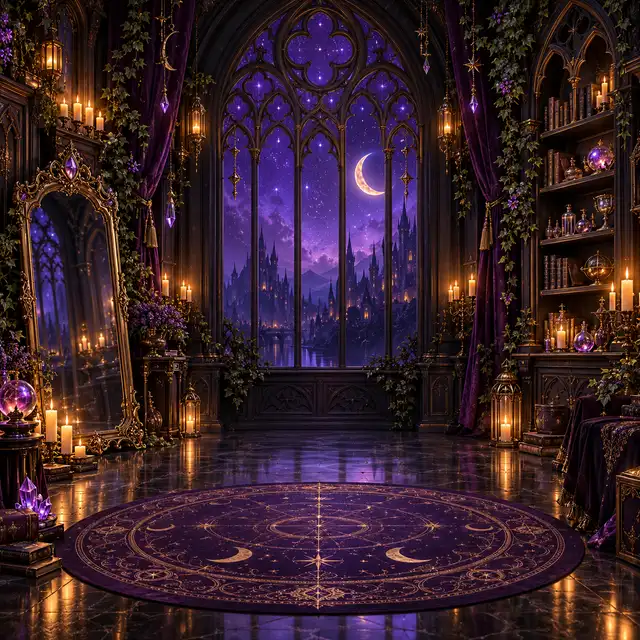
Use Edit Room to work on available walls, floors, lighting and extras. Keep the preview in view while positioning an object, then save the room. Switch back to play to interact with your avatar, Familiar or room objects.
Food, water, soap and other tools trigger their own reactions. Snack Slice and Bottle Flip add short games to care interactions. Tap the intended character so the reaction goes to the avatar or Familiar you chose. Temporary bubbles, makeup and reactions do not replace a saved character look.
Wake, rest and keep track of your day
At night, your companions can settle into sleep. Tapping wakes them through sleepy reactions. Morning coffee, subtle idle motion and occasional magical or playful effects give the preview movement between interactions.
Home widgets bring weather, timers, calendar information and rewards into the panel. Choose your weather location in its controls. Music has its own playback controls; use those to manage the soundtrack while you explore.
Choose a ride and make it yours
Open Garage to browse the available vehicles. In expanded editing, select a vehicle part and use its available color, trim, wheel or decal choices. Use the displayed Save and Cancel controls to finish or leave an edit.
Road vehicles, hovering vehicles and aircraft have different travel scenery and effects. Try the vehicle’s tap or hold interaction, and look at the lighting after dark. You can move to another Glass panel without a park-to-switch step.
Keep changes intentional
Save completed edits and use recovery options when an unfinished draft is offered. Guest sessions and local recovery drafts are not a promise of cross-device storage. Purchases, rewards and unlocks keep their existing access rules.
Use reduced-motion settings when you prefer quieter animation. Close camera features when you no longer want them active, and pause music independently when needed.
Try it with your own character
Open Avatar Studio, then use the floating avatar button to open Glass.
Try Avatar Glass