Published · By Grim & Goldie Studios
What is the Grim & Goldie 2D avatar editor?
Avatar Studio is our browser-based character editor. You choose a character and combine visual options such as hair, eyes, clothing, hands and extras. The result is a stylized 2D avatar: an illustrated character assembled from editable parts rather than a sculpted 3D model.
The editor is one part of Grim & Goldie Studios. Avatar Glass brings your character into a floating companion panel, while the Planner gives everyday tasks and schedules a more personal setting. You can start by experimenting with a look; you do not have to organize a whole calendar to enjoy the character creator.
Choose a character with a silhouette you like
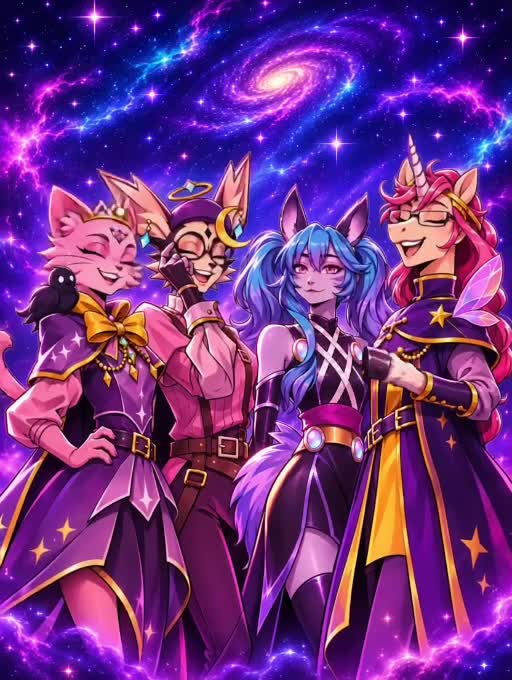
The Studio includes Gremlin, Cat, Unicorn and Fae. Each has its own proportions and visual identity, so a hairstyle or accessory can read differently on each character. Gremlin’s ears, Cat’s feline shape, Unicorn’s horn and hooves, and Fae’s fantasy features give you different starting points.
Open the character choices in Avatar Studio and look at the full-body preview before picking details. The Fae character guide shows one of these starting points and explains the difference between concept artwork and the editable character.
Build your first look in five passes
- Start with the face. Choose the skin and eyes, then add brows, mouth details or other available facial options.
- Choose the hair shape. Check how it sits around the ears and face before settling on its color.
- Add clothing. Pick an outfit or compatible wardrobe pieces and inspect the complete silhouette.
- Choose hands, feet and extras. Add one focal accessory, then check whether additional pieces improve the look.
- Review at different framings. Use Face, Feet and Full body to check details, then return to the full preview.
Manual selection gives you control over each choice. The dice is useful for exploring unexpected combinations, but it is a different workflow. If you want a specific style, change one category at a time. Our 2D avatar customization guide offers a practical example.
What happens after you create a character?
Open the floating avatar button to enter Avatar Glass. Its Home, Studio, Room and Travel panels bring character interactions, customization, room activities and vehicles into one companion. Expand the panel when you need more room to edit. The color circle on Home also has a hold shortcut for Bubble Pop.
The Planner connects character identity with real schedules, tasks, bills and events. Planner members can have their own appearance; a member’s Planner avatar is not necessarily an automatic copy of your main Studio character. Our avatar and daily planning guide explains that distinction.
How does discovery XP work?
First-time button exploration and new manually applied customization choices can earn small XP rewards. First-play bonuses are available for Bubble Pop, Fruit Slice and Bottle Flip. Discovery rewards have a separate 30-XP daily cap, and repeatedly selecting the same item does not keep earning that bonus. Random dice rolls do not award manual-customization XP.
Blue glowing orbs show the reward traveling toward your level button, or toward the floating avatar icon when Glass is closed. These are visual feedback for in-site progression, not money or an external reward.
Before you leave
Check the save and account controls for the screen you are using. Guest behavior varies between the editor, games and Planner; do not assume a guest session is backed up or synchronized to another device. Sign in and confirm your saved look before relying on it later.
Common questions
Is this a 2D or 3D character creator?
Avatar Studio focuses on 2D illustrated characters and their customization. Room and vehicle scenes add context around the character; they do not turn the editor into a general-purpose 3D modeling tool.
Can I customize on a phone?
The site has touch controls and a resizable Avatar Glass panel. Expand the editor for detailed choices, and scroll category rows to reveal more options.
Where should I start?
Choose a character, change the hair and clothing manually, and inspect the full-body preview. That small sequence introduces the editor without needing to learn every feature at once.
Try your next look.
Start with a character and make your first manual choices.
Open the 2D avatar editor